
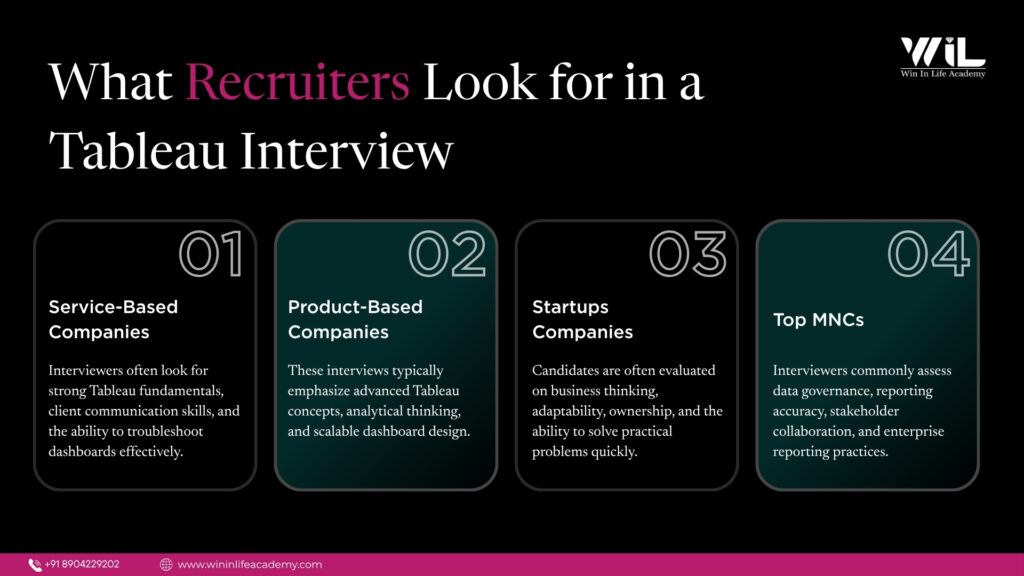
Many candidates know how to build Tableau dashboards but struggle to explain the reasoning behind their decisions during an interview. Today’s recruiters assess more than technical knowledge—they evaluate analytical thinking, problem-solving skills, and the ability to apply Tableau to real business scenarios.
According to Salesforce, 80% of business leaders say data is critical for decision-making, while 79% of analytics and IT leaders are increasing their investment in data and analytics, reflecting the growing importance of business intelligence and data visualization skills across industries.
This guide brings together 40 Tableau interview questions and answers covering Tableau fundamentals, data preparation, data connections, joins, calculated fields, LOD expressions, filters, order of execution, and dashboard optimization helping you prepare for the concepts most commonly tested in Data Analyst interviews.
Tableau Interview Questions for BI Roles in 2026 [Most Asked]
A. Tableau Fundamentals
1. What are the different file types in Tableau, and how do they differ?
Tableau uses different file types for creating dashboards, managing data sources, and storing extracted data. Understanding their purpose helps Data Analysts collaborate efficiently and choose the right format for different business requirements.
| File Type | Purpose |
|---|---|
| twb (Tableau Workbook) | Stores the workbook structure, visualizations, and metadata but does not include the data. |
| twbx (Tableau Packaged Workbook) | Contains the workbook along with the data, images, and supporting files, making it easy to share with others. |
| hyper (Tableau Extract) | Stores extracted data in Tableau’s optimized format to improve dashboard performance and enable faster analysis. |
| tds (Tableau Data Source) | Saves connection information and data source metadata without including the actual data. |
| tdsx (Tableau Packaged Data Source) | Packages the data source along with the extracted data, making it easier to share reusable data sources. |
2. What is the difference between Dimensions and Measures in Tableau?
Understanding the difference between Dimensions and Measures is essential because every Tableau visualization is built using these two field types.
| Dimensions | Measures |
|---|---|
| Describe or categorize data | Contain numerical values used for analysis |
| Usually displayed in blue | Usually displayed in green |
| Create headers or categories in a view | Create axes and quantitative values in a view |
| Not aggregated by default | Aggregated using functions such as SUM, AVG, MIN, MAX, etc. |
| Examples: Region, Product, Customer | Examples: Sales, Profit, Quantity |
3. How does Tableau differ from Excel for data analysis?
Although both tools are used for data analysis, they serve different purposes.
| Excel | Tableau |
|---|---|
| Best for calculations and spreadsheets | Best for interactive dashboards and visualization |
| Suitable for small to medium datasets | Handles large datasets efficiently |
| Static charts | Interactive charts and dashboards |
| Manual reporting | Automated and dynamic reporting |
| Limited dashboard capabilities | Advanced dashboarding and storytelling |
For reporting, KPI tracking, and interactive analysis, Tableau is generally the preferred choice.
Want to know how Tableau compares with Power BI?
4. What is the difference between Continuous and Discrete fields? When would you use each?
Continuous and Discrete fields determine how Tableau displays data in a visualization.
| Continuous | Discrete |
|---|---|
| Creates a continuous axis | Creates separate headers or categories |
| Displayed in green | Displayed in blue |
| Best for trends and numerical ranges | Best for categorical comparisons |
For example, a continuous date creates a timeline for monthly sales trends, whereas a discrete month displays separate columns for each month.
5. Your manager wants a dashboard that updates in real time, but the database contains millions of records. Would you recommend a Live Connection or a Data Extract?
The recommendation depends on the business requirements.
If the dashboard requires real-time reporting, a Live Connection is the better choice because it always retrieves the latest data from the source.
However, if dashboard performance is more important and a slight delay is acceptable, a Data Extract is preferable because it stores a snapshot of the data locally, resulting in faster dashboard loading and reduced database load.
A strong interview answer should explain the trade-off between real-time accuracy and performance, rather than recommending one option unconditionally.
6. What is the difference between a Live Connection and a Data Extract?
| Live Connection | Data Extract |
|---|---|
| Connects directly to the source database | Stores a snapshot of the data |
| Always displays the latest data | Requires scheduled refreshes |
| Performance depends on the database | Faster dashboard performance |
| Suitable for real-time reporting | Suitable for historical analysis and large datasets |
7. How do you choose the right chart for different business scenarios in Tableau?
Choosing the right visualization depends on the business question being answered.
| Business Requirement | Recommended Chart |
|---|---|
| Compare categories | Bar Chart |
| Show trends over time | Line Chart |
| Display proportions | Pie Chart (few categories only) |
| Identify relationships | Scatter Plot |
| Visualize geographic data | Map |
| Understand data distribution | Histogram |
8. Explain the difference between Tableau Desktop, Tableau Server, Tableau Cloud, and Tableau Public.
Each Tableau product serves a different purpose within the analytics workflow.
| Product | Purpose |
|---|---|
| Tableau Desktop | Build dashboards and perform analysis |
| Tableau Server | Publish and securely share dashboards within an organization |
| Tableau Cloud | Cloud-hosted platform for sharing dashboards and collaboration |
| Tableau Public | Publish dashboards publicly for portfolios and learning |
A typical workflow involves creating dashboards in Tableau Desktop and publishing them to Tableau Server or Tableau Cloud for business users.
If you’re confused about the difference between the Tableau Developer and Tableau Analyst roles, check out this .
9. A dashboard isn’t displaying the expected results. How would you troubleshoot the issue?
A systematic approach helps identify the root cause quickly.
Step 1: Verify that the correct data source is connected.
Step 2: Check whether the appropriate Dimensions and Measures have been used.
Step 3: Review filters that may be excluding records.
Step 4: Validate field data types and aggregations.
Step 5: Test the visualization in a new worksheet to isolate the issue.
Following these steps helps identify whether the problem is related to the data source, visualization, or dashboard configuration.
10. What dashboard design best practices should every Data Analyst follow in Tableau?
An effective Tableau dashboard should communicate insights clearly while remaining easy to use.
- Keep the dashboard clean and uncluttered.
- Highlight the most important KPIs.
- Use consistent colors, fonts, and formatting.
- Select charts that best represent the data.
- Minimize unnecessary filters and calculations.
- Design dashboards for the target audience.
- Optimize performance to reduce loading time.
A well-designed dashboard enables users to understand business insights quickly without unnecessary complexity.
11. What are the most common mistakes beginners make while building Tableau dashboards, and how can they be avoided?
| Common Mistake | How to Avoid It |
|---|---|
| Using too many charts | Focus only on metrics that support the business objective. |
| Choosing the wrong chart type | Select visualizations based on the type of analysis. |
| Overusing colors | Use a consistent and meaningful color palette. |
| Cluttered layouts | Keep dashboards simple and organized. |
| Ignoring performance | Optimize calculations, filters, and data sources. |
| Designing without users in mind | Build dashboards based on stakeholder requirements. |
B. Tableau Data Preparation & Data Connections
12. Write a calculated field to categorize orders as ‘High Value’ or ‘Low Value’ based on Sales.
Calculated fields allow Data Analysts to create new business categories without modifying the original dataset. In this scenario, an IF statement can classify orders based on their sales value.
IF [Sales] >= 50000 THEN
“High Value”
ELSE
“Low Value”
END
This calculated field creates a new category that can be used for filtering, segmentation, color coding, or dashboard analysis. It helps businesses quickly identify high-value orders and compare their performance with lower-value transactions.
13. What is the difference between Joins, Relationships, and Data Blending in Tableau?
Tableau provides multiple ways to combine data, each designed for different analytical needs.
| Method | Purpose | Best Used When |
|---|---|---|
| Join | Combines tables into a single dataset before analysis. | Tables come from the same data source and share a common key. |
| Relationship | Maintains separate tables and combines data dynamically during analysis. | Tables have different levels of detail or need to remain independent. |
| Data Blending | Combines aggregated data from different data sources using a common linking field. | Data comes from different sources and cannot be directly joined. |
Relationships are generally the preferred approach in modern Tableau because they preserve data integrity and minimize duplicate records.
14. When would you use a Join instead of a Relationship in Tableau?
A Join is suitable when the tables contain related data at the same level of detail and need to be merged into a single dataset before analysis.
A Relationship is preferable when the tables have different levels of granularity or when maintaining separate logical tables improves flexibility and reduces the risk of duplicate records.
Selecting the appropriate method ensures accurate calculations while improving dashboard performance.
15. Your dashboard shows duplicate records after joining two tables. How would you troubleshoot the issue?
Duplicate records often indicate an issue with the join logic rather than the visualization itself.
A systematic troubleshooting approach includes:
- Verify that the correct join keys are being used.
- Check for one-to-many or many-to-many relationships.
- Review the selected join type.
- Compare the number of records before and after the join.
- Consider using Relationships instead of Joins if duplicate records cannot be avoided.
Identifying the cause of duplication is essential before making changes to the data model.
16. Explain the different types of joins available in Tableau.
| Join Type | Description |
|---|---|
| Inner Join | Returns only matching records from both tables. |
| Left Join | Returns all records from the left table and matching records from the right table. |
| Right Join | Returns all records from the right table and matching records from the left table. |
| Full Outer Join | Returns all matching and non-matching records from both tables. |
The appropriate join depends on the business requirement and the completeness of the data required for analysis.
17. What is the difference between Sets and Groups in Tableau?
Although both are used to organize data, they serve different purposes.
| Sets | Groups |
|---|---|
| Dynamic and condition-based | Static and manually created |
| Automatically update when data changes | Remain unchanged until edited |
| Ideal for Top N analysis and comparisons | Ideal for fixed business classifications |
For example, identifying the Top 10 Customers is best achieved using a Set, while categorizing customers as Retail, Corporate, and Enterprise is better handled using Groups.
18. Sales data is stored in SQL, while target data is maintained in Excel. How would you combine both datasets in Tableau?
The first step is to identify whether both datasets share a common field, such as Product ID, Region, or Date.
If both datasets have the same level of detail, they can be connected using a Relationship or Join, depending on the data source.
If the datasets come from different sources and need to remain independent, Data Blending can be used to compare actual sales with targets without modifying the original data.
The choice depends on the data structure and the business requirement rather than the tool itself.
19. How do data types affect analysis in Tableau?
Correct data types ensure Tableau interprets fields accurately for calculations, sorting, filtering, and visualization.
| Data Type | Example |
|---|---|
| String | Customer Name, Product |
| Number | Sales, Profit |
| Date | Order Date |
| Boolean | True / False |
| Geographic | Country, State, City |
Incorrect data types can lead to inaccurate calculations, unavailable chart options, and misleading analytical results. Validating data types is therefore an essential step during data preparation.
Data Analytics with Next-Gen AI Certification Program
Become a job-ready Data Analyst by mastering SQL, Excel, Tableau, Power BI, Python, Statistics, and AI-driven analytics through hands-on projects and real-world case studies.
Industry-focused training with live projects, portfolio development, placement mentorship, and interview preparation.
C. Tableau Calculations & Analytics
20. Write a calculated field to classify customers as High, Medium, or Low Value based on their total sales.
Calculated fields help create custom business logic without modifying the original dataset.
IF SUM([Sales]) >= 100000 THEN
“High Value”
ELSEIF SUM([Sales]) >= 50000 THEN
“Medium Value”
ELSE
“Low Value”
END
This calculation creates customer segments that can be used for filtering, color coding, and dashboard analysis.
21. What is the difference between IF and CASE statements in Tableau? When would you use each?
Both IF and CASE statements are used to create calculated fields, but they serve different purposes.
| IF Statement | CASE Statement |
|---|---|
| Evaluates multiple logical conditions | Compares one field against multiple values |
| Supports operators like >, <, >= | Checks exact matches only |
| Best for range-based conditions | Best for category mapping |
| Example: IF IF [Sales] > 50000 THEN “High” ELSE “Low” END | Example: CASE CASE [Region] WHEN “East” THEN “E” WHEN “West” THEN “W” ELSE “Other” END |
22. What are FIXED, INCLUDE, and EXCLUDE LOD Expressions? Give a business example for each.
Level of Detail (LOD) expressions allow calculations to be performed independently of the visualization.
| LOD | Purpose | Example Use Case |
|---|---|---|
| FIXED | Calculates at a fixed level of detail | Total sales per customer regardless of the view |
| INCLUDE | Adds dimensions to the current view | Product-level sales within each region |
| EXCLUDE | Removes dimensions from the current view | Regional sales while ignoring product details |
Example
{ FIXED [Customer ID] : SUM([Sales]) }
This calculates total sales for each customer, even if the dashboard is displaying data by region or product.
23. How would you create a parameter that allows users to switch between Sales and Profit in the same visualization?
Parameters allow users to interact with dashboards dynamically.
Step 1: Create a parameter called Measure Selector.
Values:
- Sales
- Profit
Step 2: Create the following calculated field.
CASE [Measure Selector]
WHEN “Sales”
THEN SUM([Sales])
WHEN “Profit”
THEN SUM([Profit])
END
Use this calculated field in the visualization to allow users to switch between the two measures without creating multiple worksheets.
24. Write a calculation to display Year-over-Year (YoY) Sales Growth.
Year-over-Year analysis compares current performance with the previous year.
- (SUM([Sales]) – LOOKUP(SUM([Sales]),-1))
/
LOOKUP(SUM([Sales]),-1)
This calculation returns the percentage growth compared with the previous year and is commonly used in executive dashboards and business performance reports.
25. Your dashboard needs to display the Top 10 Customers based on Profit, and the ranking should update automatically as new data is added. How would you implement this?
The most effective approach is to use a Dynamic Set.
- Select the Customer dimension.
- Create a Set.
- Choose the Top tab.
- Select Top 10 by SUM(Profit).
- Use the Set as a filter or color in the dashboard.
Because Sets are dynamic, Tableau automatically updates the ranking whenever the underlying data changes, making them ideal for Top N analysis.
D. Tableau Filters & Order of Execution
26. What are the different types of filters available in Tableau?
Tableau provides multiple filter types, each applied at a different stage of data processing.
| Filter Type | Purpose |
|---|---|
| Extract Filter | Filters data while creating an extract, reducing the dataset size. |
| Data Source Filter | Restricts data immediately after connecting to the data source. |
| Context Filter | Creates a temporary subset of data that other filters depend on. |
| Dimension Filter | Filters categorical data such as Region or Product. |
| Measure Filter | Filters aggregated numerical values such as Sales or Profit. |
| Table Calculation Filter | Filters calculated results without affecting the underlying data. |
Choosing the appropriate filter improves dashboard performance and ensures accurate analysis.
27. What is a Context Filter, and when should it be used?
A Context Filter creates a temporary subset of data before other filters are applied. Any subsequent filters operate only on this subset, making filtering more efficient.
Context Filters are especially useful when working with large datasets or when one filter should influence the results of other filters.
28. Explain the Order of Execution in Tableau and why it is important.
The Order of Execution determines the sequence in which Tableau applies filters and calculations. Understanding this sequence helps prevent unexpected results and improves troubleshooting.
| Execution Order | Filter Type |
|---|---|
| 1 | Extract Filter |
| 2 | Data Source Filter |
| 3 | Context Filter |
| 4 | Dimension Filter |
| 5 | Measure Filter |
| 6 | Table Calculation Filter |
Knowing this order helps Data Analysts understand why certain filters override others and how to design dashboards more effectively
29. Your dashboard displays incorrect results after applying multiple filters. How would you troubleshoot the issue?
When multiple filters produce unexpected results, a systematic approach helps identify the root cause.
- Step 1: Check whether a Context Filter is affecting other filters.
- Step 2: Review the Order of Execution to determine which filter is applied first.
- Step 3: Verify that Dimension and Measure filters are configured correctly.
- Step 4: Check for dependent filters or hidden filter selections.
- Step 5: Test each filter individually before combining them.
Following these steps helps isolate the issue while maintaining accurate dashboard results.
30. How would you create a dynamic Top N filter in Tableau?
A dynamic Top N filter allows users to control how many records are displayed without modifying the dashboard.
Step 1: Create an Integer Parameter named Top N.
Step 2: Create a Set using the required dimension (for example, Customer).
Step 3: Configure the Set to display the Top records based on SUM(Sales) and link it to the parameter.
Step 4: Apply the Set as a filter in the dashboard.
This approach enables users to dynamically display the Top 5, Top 10, or any other number of records.
31. When should you use an Extract Filter instead of a Data Source Filter?
Although both filters reduce the amount of data processed, they are applied at different stages.
| Extract Filter | Data Source Filter |
|---|---|
| Applied during extract creation | Applied after connecting to the data source |
| Reduces the size of the extract file | Restricts data available for analysis |
| Improves extract performance | Improves security and limits accessible data |
| Best for static subsets of data | Best for controlling user access to data |
If the objective is to reduce extract size and improve dashboard performance, an Extract Filter is generally the better choice. If the goal is to limit the data available to users, a Data Source Filter is more appropriate.
E. Tableau Dashboard Performance & Optimization
32. What factors can affect the performance of a Tableau dashboard?
Some common performance bottlenecks include:
- Using Live Connections with large datasets
- Loading unnecessary fields
- Excessive marks in visualizations
- Multiple complex calculated fields
- High-cardinality filters
- Too many worksheets in a dashboard
Identifying these bottlenecks early helps improve dashboard responsiveness and the overall user experience.
33. What are the best practices for improving Tableau dashboard performance?
Optimizing dashboard performance improves loading speed and enhances the user experience.
- Use Data Extracts whenever possible.
- Remove unused fields and worksheets.
- Minimize the number of marks displayed.
- Use Context Filters only when necessary.
- Reduce complex calculated fields.
- Aggregate data before importing it into Tableau.
- Limit the use of quick filters.
- Optimize custom SQL queries.
34. How does Tableau Performance Recorder help optimize dashboards?
Tableau Performance Recorder helps identify performance bottlenecks by recording how long different dashboard operations take to execute.
It provides detailed information about:
- Query execution time
- Dashboard rendering time
- Calculation performance
- Filter execution time
- Data connection delays
35. A dashboard takes nearly one minute to load. How would you identify and resolve the issue?
A structured troubleshooting process helps identify the root cause of slow dashboard performance.
- Step 1: Run Tableau Performance Recorder.
- Step 2: Determine whether the delay is caused by the database, calculations, or dashboard rendering.
- Step 3: Reduce unnecessary marks and worksheets.
- Step 4: Replace Live Connections with Data Extracts if real-time data is not required.
- Step 5: Simplify calculations and remove unused fields.
- Step 6: Test the dashboard again to measure performance improvements.
Performance optimization should focus on identifying the actual bottleneck rather than applying random optimizations.
36. Why does using aggregated data improve dashboard performance?
Aggregated data reduces the number of records Tableau needs to process, resulting in faster queries and improved dashboard responsiveness.
For example, instead of loading millions of transaction-level records, a dashboard can use monthly sales summaries grouped by region or product. This significantly reduces processing time while still providing meaningful business insights.
Aggregating data before analysis is one of the most effective ways to improve dashboard performance.
37. How would you design a Tableau dashboard for mobile devices?
Mobile dashboards should prioritize simplicity, readability, and performance.
- Use Tableau Device Layouts for mobile screens.
- Display the most important KPIs at the top.
- Reduce the number of visualizations per screen.
- Use larger fonts and touch-friendly filters.
- Avoid overcrowding the dashboard.
- Test the dashboard on multiple screen sizes before publishing.
A well-designed mobile dashboard ensures users can access key insights quickly, regardless of the device they are using.
38. What is the difference between dashboard performance and dashboard usability?
Although related, dashboard performance and usability measure different aspects of the user experience.
| Dashboard Performance | Dashboard Usability |
|---|---|
| Focuses on loading speed and responsiveness | Focuses on ease of use and user experience |
| Influenced by queries, calculations, and data volume | Influenced by layout, navigation, and visualization choices |
| Measured using tools such as Performance Recorder | Evaluated through user interaction and accessibility |
A successful dashboard should be both fast and easy to understand.
39. Your dashboard contains multiple worksheets, complex calculations, and several quick filters. What optimization strategies would you recommend before publishing it?
Before publishing a dashboard, review both its design and technical implementation to ensure it performs efficiently.
- Remove unused worksheets, fields, and calculations.
- Replace Live Connections with Data Extracts where appropriate.
- Reduce the number of quick filters.
- Minimize marks displayed in each visualization.
- Aggregate data whenever possible.
- Optimize custom SQL queries.
- Use Context Filters only when necessary.
- Validate performance using Tableau Performance Recorder before deployment.
Following this checklist helps deliver dashboards that load quickly, remain responsive, and provide a better experience for end users.
40. Why is reducing the number of marks in a Tableau visualization important for dashboard performance?
Marks represent individual data points displayed in a Tableau visualization. As the number of marks increases, Tableau requires more processing power to render the visualization, which can lead to slower dashboard performance and longer loading times.
To improve performance, Data Analysts should display only the level of detail required for the analysis, aggregate data where appropriate, apply filters to limit unnecessary records, and avoid visualizations with excessive marks unless detailed analysis is required.
For example, instead of displaying millions of transaction-level records in a scatter plot, summarizing the data by Region, Product Category, or Month can significantly improve dashboard responsiveness while still delivering meaningful insights.
Conclusion
A successful Tableau interview isn’t about memorizing features—it’s about demonstrating how you apply Tableau to solve business problems, analyze data, and communicate insights with confidence. Consistently practicing these 40 Tableau interview questions and answers, along with building real-world Tableau projects and strengthening your SQL skills, will help you perform more confidently in technical and scenario-based interviews.
The demand for professionals with business intelligence and data visualization skills continues to grow as organizations increasingly rely on data-driven decision-making. According to Fortune Business Insights, the global Business Intelligence market is projected to grow significantly over the next decade, reflecting the increasing need for professionals who can transform data into actionable insights. This makes practical Tableau expertise a valuable skill for aspiring Data Analysts.
If you’re ready to move beyond interview preparation and build industry-ready Data Analytics skills, Win In Life Academy’s (WILA) Data Analytics Program with AI offers hands-on training in SQL, Excel, Tableau, Power BI, Python, Statistics, and AI through live projects, portfolio development, mock interviews, and placement support—helping you confidently launch your career as a Data Analyst.
Data Analytics with Next-Gen AI Certification Program
Master SQL, Excel, Tableau, Power BI, Python, Statistics, and AI-powered analytics through hands-on projects designed for aspiring Data Analysts.
Industry-focused training with portfolio development, interview preparation, and placement support.
Frequently Asked Questions (FAQs)
1. What are the most frequently asked Tableau interview questions for Data Analyst roles?
Most Tableau interviews begin with fundamental concepts such as Dimensions vs Measures, Continuous vs Discrete fields, Live Connections vs Data Extracts, Joins, Relationships, Calculated Fields, Filters, LOD Expressions, and Dashboard Optimization. Recruiters also ask scenario-based questions to evaluate how candidates apply Tableau in real-world business situations.
2. How should freshers prepare for a Tableau interview?
Freshers should focus on understanding Tableau fundamentals, practicing calculated fields, building interactive dashboards, and solving scenario-based interview questions. Creating 3–5 Tableau projects and explaining the business insights generated from each project can significantly improve interview performance.
3. Are coding questions asked in Tableau interviews?
Yes. Although Tableau is a low-code platform, recruiters often ask candidates to write Calculated Fields, IF and CASE statements, Parameters, LOD Expressions, and Table Calculations to solve business problems. These questions assess logical thinking rather than programming expertise.
4. What Tableau skills do recruiters look for in Data Analyst interviews?
Recruiters typically assess dashboard design, data visualization, data preparation, calculated fields, filters, dashboard optimization, analytical thinking, and the ability to explain business insights clearly. Practical project experience is often valued more than theoretical knowledge.
5. Is Tableau enough to get a Data Analyst job?
Tableau is an important skill, but it is usually not enough on its own. Most employers also expect candidates to have knowledge of SQL, Excel, basic statistics, and data analysis concepts. Combining these skills with hands-on Tableau projects improves job opportunities.
6. What are the most important Tableau topics to revise before an interview?
The highest-priority topics include Tableau Fundamentals, Data Preparation, Joins and Relationships, Calculated Fields, Parameters, LOD Expressions, Filters, Order of Execution, Dashboard Design, and Performance Optimization. These topics are commonly covered in Data Analyst interviews.
7. How many Tableau projects should be included in a portfolio?
For entry-level Data Analyst roles, 3 to 5 well-documented Tableau projects are generally sufficient. Projects should demonstrate different skills such as dashboard creation, data cleaning, calculations, interactive filters, and business storytelling using real-world datasets.
8. What common mistakes should candidates avoid during a Tableau interview?
Common mistakes include memorizing definitions without understanding the concepts, selecting inappropriate visualizations, struggling to explain dashboard decisions, ignoring performance optimization, and failing to relate answers to business scenarios. Interviewers value practical thinking and problem-solving more than memorized responses.
9. How can Tableau dashboard performance be improved?
Dashboard performance can be improved by using Data Extracts, reducing unnecessary calculations, minimizing filters, removing unused fields, aggregating data where possible, limiting the number of marks, and using Tableau Performance Recorder to identify bottlenecks.
10. How long does it take to prepare for a Tableau interview?
The preparation time depends on prior experience. Candidates with basic Tableau knowledge can typically prepare within 2–4 weeks through consistent practice, while beginners may require 6–8 weeks to build dashboards, understand core concepts, and gain confidence with interview questions and practical scenarios.